Script supervision is one of those jobs that nobody notices until something goes wrong. A missed line, a continuity error, a take that the editor can’t work with? It all falls on the shoulders of the Script Supervisor (a.k.a. the guardian angel of the edit).
One of the most crucial skills in this role is “lining a script,” a deceptively simple concept that can save hours, or even days, of post-production headaches.
In today’s blog, we’re going to walk you through everything you need to know about lining a script, from the basics to the nuances, and even provide a ready-to-use template that you can start using today.
Whether you’re new to the craft or looking to refresh your skills for the digital age of 2026, this guide has got you covered.
So, let’s begin!
What Does It Mean to Line a Script?
“Lining a script” is the practice of marking up a shooting script to indicate which lines of dialogue and action appear on-screen in each take, which are off-screen, and how coverage progresses across multiple cameras or setups.
Think of it as using a vertical system to create a visual map for the editor before the cameras even start rolling.
The Vertical Line System
So, what’s the vertical line system?
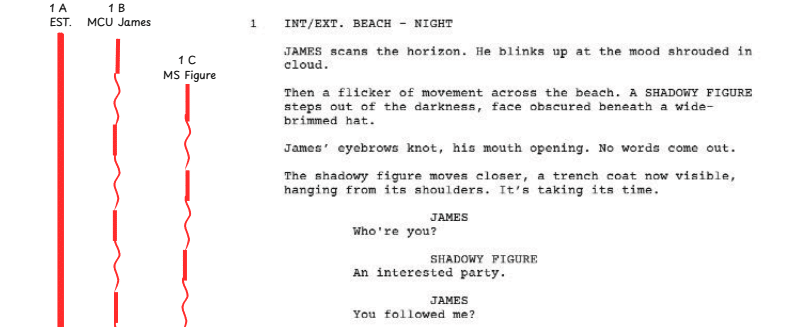
Well, the vertical line system is the backbone of lining. Imagine your script page as a blank canvas. For every take, you draw a vertical line through the dialogue and action that was captured. Straight lines indicate lines that were fully on-screen and audible; wavy lines denote off-screen or partially covered elements.
Each take gets its own column, usually labeled with the scene and take number (3A, 3B, etc.). This method allows you, and eventually the editor, to instantly see what coverage exists for every moment of a scene.
In short, it’s the shorthand that lets the editor know exactly which material is usable and which isn’t.
Straight Lines vs. Squiggles
Now that you know the purpose of vertical lines, let’s talk style. Script supervisors often joke that if you can’t read your lines six months later, your squiggles weren’t squiggly enough.
Straight Lines
These indicate dialogue or action that is fully captured and appears on-screen. For example, if the actor says their line and the camera catches it cleanly, draw a solid vertical line through that line in your script.
Wavy Lines
Also called “squiggles,” these are your marker for anything off-screen or partially covered. Maybe a line was muffled, or a prop was blocked from view. Either way, wavy lines tell the editor, “Proceeds with caution.”
This visual distinction is critical because it instantly communicates what the editor can rely on and what might need pickups or alternate angles.
The Visual Language of Continuity
Lining a script isn’t just about vertical lines, but about creating a language that communicates coverage, performance, and continuity. When you line consistently, your script becomes a visual representation of the scene’s rhythm.
Columns for Each Take
Typically, each column is labeled with the scene and take (more on that below).
Circle Takes
These are the “golden takes” that the director or editor prefers. We’ll cover how to mark them in the next section.
Props, Actions, and Blocking
You can also line actions if they are critical to continuity, ensuring that, say, a character’s hand placement or prop interaction is consistent.
When you master this visual language, you become the bridge between the chaos of the set and the precision of the edit suite.

How to Line a Script on Set (Technical Step-by-Step)
Here’s where the magic happens. Lining a script on set requires both focus and speed, because, unlike in the comfort of your office, the cameras don’t wait for you.
Step 1 | Prepare Your Script Before Shooting
Before you even get near the cameras, make sure your script is ready:
- Use Celtx’s Production Breakdown features to ensure your script elements are ready to go.
- Use table reads to familiarize yourself with the script and how scenes are going to play out.
- Highlight speaking parts and key actions: Use a pencil or highlighter to mark dialogue, props, or action beats that are essential.
- Leave space for lines: If you’re hand-lining, make sure the script margins are wide enough for vertical lines. Digital scripts often allow columns to be added automatically.
- Number pages clearly: Each page should have the scene number, page number, and production title visible.
CELTX TOP TIP: Pre-lining “dry runs” or rehearsal takes in pencil can save you from scrambling during shooting.
Step 2 | Number the Takes Clearly
Each take needs a unique identifier so editors know exactly which footage corresponds to which lines:
- Standard format: Scene number + take number/letter (e.g., 3A, 3B, 3C).
- Multiple setups: If a scene is shot from different camera angles or with coverage changes, use letters to differentiate (e.g., 3A for wide, 3B for close-up).
- Slate verification: Always double-check the slate before marking lines. Mis-slating creates confusion in post.
CELTX TOP TIP: Circle or highlight the first take of a new setup. Editors like to know when setups start and end.
Step 3 | Draw Vertical Lines Through the Script
Here’s where your visual shorthand comes to life:
- Straight lines = fully on-screen and audible dialogue/action.
- Wavy lines = off-screen, partially captured, or blocked dialogue/action.
Step-by-Step
- Wait for the director to call “Cut.”
- Immediately mark the dialogue/action that was captured. Don’t guess, and just mark only what you actually saw on camera.
- Use consistent line height and spacing. Your lines need to be readable at a glance.
- For multi-camera shoots, draw separate vertical lines in each camera’s column.
CELTX TOP TIP: Make sure to familiarize yourself with key paperwork abbreviations for production so you’re super prepared!
Step 4 | Identify “Circle Takes”
Circle takes are the editor’s best friends because they indicate the take the director liked the most or the one with perfect performance and technical execution.
- Marking: Circle the take number at the top of the column.
- Additional notes: If the director requests, add short notes like “actor improvisation” or “great prop interaction” to give the editor more context.
CELTX TOP TIP: Even if a take isn’t circled, mark coverage clearly. Editors need options, not just the “golden” take.
Step 5 | Track Props, Actions, and Continuity
Dialogue isn’t the only thing that matters. Actions, props, and blocking are critical to continuity:
- Props: Note placement and handling of key objects (e.g., a coffee cup, a gun, a phone).
- Blocking: Track positions, gestures, and entrances/exits.
- Clothing and hair: Subtle differences in costume or hairstyle can ruin continuity if missed.
Step-by-Step
- Draw a small symbol in the margin for props or actions.
- Add quick notes describing the movement or placement.
- Compare with previous takes to catch continuity errors early.
CELTX TOP TIP: Use shorthand symbols to speed up your annotations. For example, a small circle for a prop, a triangle for movement, and a square for wardrobe checks.
Step 6 | Annotate Improv and Unscripted Lines
Actors often improvise, and your lining needs to capture these deviations:
- Draw a line through the closest scripted dialogue or action.
- Add a note describing the improv in your “Notes/Actions” column.
Editors need this information to decide whether to include the unscripted material in the cut.
CELTX TOP TIP: Use “(imp)” or “(improv)” as shorthand. It’s quick, clear, and universally understood by post teams.
Step 7 | Verify Digital or Hand-Lined Records
Depending on your workflow:
- Hand-lining: Take a moment at the end of each day to check your annotations for clarity and completeness. Scan or photograph sheets if needed.
- Digital: Ensure columns, symbols, and circle takes are correctly synced. Digital templates can auto-populate coverage summaries for editors.
CELTX TOP TIP: Whether digital or analog, consistency is key. Editors should be able to pick up your sheet without asking questions.
Step 8 | Communicate With the Director and Editor
Your lined script is notes and a key communication tool:
- On set: Let the director know when a circle take is logged.
- Post-production: Hand over either the original script or a digital version with clear lines, circle takes, and notes. Include a legend if you used shorthand.
CELTX TOP TIP: A quick verbal update like “All lines captured, circle take 3B for dialogue and prop continuity” can save hours in post.
Quick Tips for Complex Scenes
- Multi-actor dialogue: Make sure each actor’s lines are clearly tracked separately. Consider color-coding if necessary.
- Crowd scenes: Focus on principal actors first; note extras only if their actions affect continuity.
- Multiple props or special effects: Mark each separately to avoid confusion.
Lining Digitally vs. Hand-Marking: Pros and Cons for 2026
With technology evolving, script supervision has embraced digital tools, but hand-marking remains a classic. Here’s a quick comparison:
| Method | Pros | Cons |
| Hand-marking | Quick, tactile, easy to annotate on the fly; no batteries needed. | Can be messy; difficult to share instantly. |
| Digital | Easy to duplicate, share, and backup; searchable; integrates with production software | Requires devices, power, and sometimes slower on set; less tactile feel |
Many supervisors use a hybrid approach: hand-line during shooting, then update digital copies for archival and distribution to the editor.
Script Supervisor Template (Ready-to-Use)
DOWNLOAD OUR FREE TEMPLATE and adapt for your productions.
This sheet allows you to line dialogue, action, and coverage while also noting props, blocking, and continuity, all in one glance.
CELTX TOP TIP: While this lining template works perfectly on a tablet using apps like Scriptation, many experienced Script Supervisors still rely on printed pages during high-speed shoots.
A common method is to print the Facing Page and the Script on two different colors of paper, allowing you to instantly flip between pages in a binder, find your coverage, and mark lines without losing time.
On set, every second counts, and this tactile system often beats even the fastest digital scroll.
Tired of manual logs? Use the Celtx Schedule and Report features to automatically track your daily wrap data and export clean editorial logs directly from your shoot day.
FAQ
It’s simple: you literally draw lines through the script to indicate coverage. These lines communicate visual and audio information quickly and consistently.
As tempting as it is to say “scripty stuff,” the correct term is Script Supervisor. This role is essential, skilled, and deserves respect.
A mis-slated scene can wreak havoc in the edit. Takes may be misnumbered, making it hard for the editor to match audio, dialogue, and coverage.
Always double-check scene numbers, slates, and takes before moving on. When in doubt, circle a take and confirm with the director.
Yes! When shooting with multiple cameras, you can use separate columns for each camera. For example, Camera A gets one column, Camera B another. Use the same straight and wavy line conventions for each column.
This way, the editor can see at a glance which camera captured which lines, making multi-cam editing much smoother.
Unscripted dialogue should still be noted in your lining sheet. Draw a line through the closest scripted line and add a note in the “Notes/Actions” column indicating the improvisation.
Editors rely on these annotations to decide whether to include or cut improvised material, so even unscripted lines deserve clear documentation.

Conclusion
Lining a script is a whole language in itself. It’s a bridge between the chaos of the set and the precision of the edit suite. Done correctly, it saves time, prevents mistakes, and ensures that the editor knows exactly which takes to use. Done poorly, it creates headaches that reverberate through post-production.
Whether you’re wielding a pen or a tablet, the principles remain the same: clarity, consistency, and a commitment to communicating coverage. With your lined script in hand, you are shaping the foundation of storytelling, one vertical line at a time.
By mastering these techniques and using the template provided, you’ll be ready to tackle any production, ensuring continuity, coverage, and editor-friendly documentation from day one. After all, the mark of a great Script Supervisor is making it look effortless, even when the cameras are anything but.
Download our Lined Script Template and start practicing today.
Focus on your story, not your formatting.
Let Celtx’s Script Editor automatically apply all industry rules while you focus on the story.
Up Next:
How to Do a Script Breakdown (With Video Tutorial)
A lined script helps track what’s filmed — a script breakdown helps plan what needs to be filmed. Learn how to identify production elements and prepare your project for scheduling and shooting.